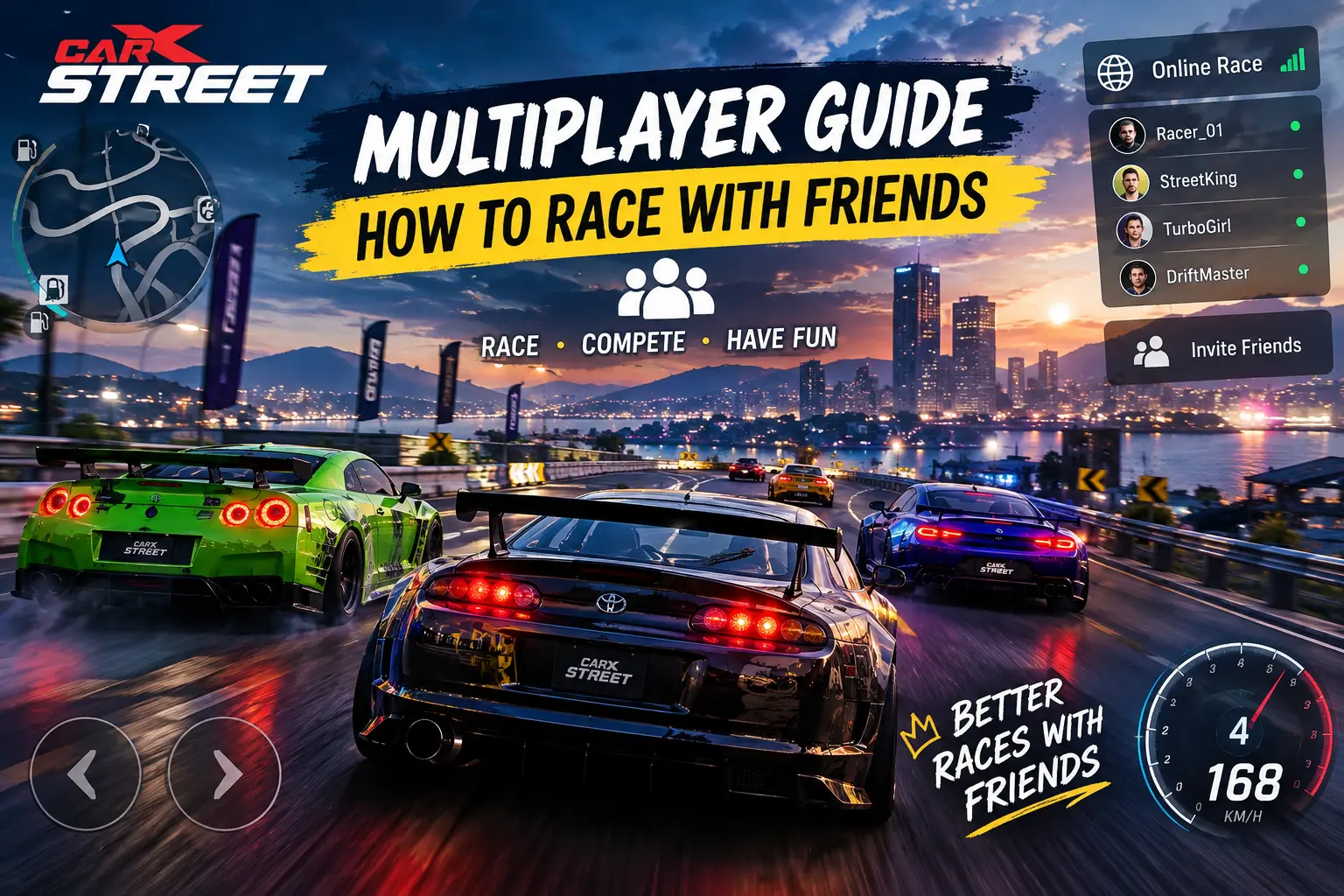
CarX Street Multiplayer Guide: How to Race With Friends
CarX Street is more exciting when you can challenge other drivers, compare your cars, and compete for the lead. Multiplayer adds a different experience to the usual solo races because you have to react to real opponents instead of following predictable racing patterns. Whether you enjoy high-speed runs or close drifting battles, playing online can make every race more competitive.
In this CarX Street multiplayer guide, you will learn how to access online racing, find multiplayer options, set up a race with friends when supported, improve your driving, and troubleshoot common connection problems. Menu names and available features can differ between game versions and platforms, so always check the options available in your installed version.
What Is Multiplayer in CarX Street?
Multiplayer lets you compete against other players online rather than racing only against computer-controlled opponents. Depending on the version and available modes, you may find online rooms, competitive matchmaking, or race formats with customizable rules.
The game has introduced different multiplayer features over time. For example, its official update history describes private and open rooms, while the Speed League mode introduced customizable races for up to six players. The PC version also has a ranked mode called Runlist, which matches players for competitive races. Availability can differ across platforms and updates.
Multiplayer is especially useful if you want to:
- Race against real players and test your driving skills.
- Compare different car builds and tuning setups.
- Practice cornering, overtaking, and drifting under pressure.
- Compete in online events and improve your consistency.
- Enjoy friendly challenges with other racing fans.
How to Access Multiplayer in CarX Street
If you want to start an online race, follow these general steps. The exact menu layout may differ depending on whether you play on Android, iOS, or PC.
Step 1: Update and Open the Game
Start by checking that you have a current, compatible version of CarX Street. An outdated installation may have missing features or connection problems.
Open the game and allow it to finish loading before entering an online mode. If an update is available, install it from your platform’s official store or launcher.
Step 2: Check Your Internet Connection
Multiplayer requires a stable internet connection. Wi-Fi is often a good choice, but a reliable mobile data connection can also work.
Before joining a race, make sure your connection is not switching repeatedly between networks. Pause large downloads and close apps that are using significant bandwidth if your game keeps disconnecting.
Step 3: Open the Online or Multiplayer Section
Look through the main menu for the available online racing options. Depending on your game version, you may see multiplayer rooms, online battles, or another competitive mode.
Choose a mode that matches the kind of racing you want to experience. If the feature is missing, check whether your platform and installed version support it.
Step 4: Select an Available Race or Room
If your version offers open rooms, browse the available sessions and select one you can join. For private rooms, follow the in-game instructions for creating or entering a session.
Some modes use matchmaking instead of a traditional room browser. In that case, choose the available race configuration and start searching for opponents.
Step 5: Get Ready and Start Racing
Once you enter a session, check the race information and available controls. Make sure your car is suitable for the selected event and that you understand the race objective before the countdown ends.
If your version provides a way to invite friends or share a room, use that in-game option to coordinate your session. Not every multiplayer mode uses the same invitation system.
How to Race With Friends in CarX Street
Playing with friends is different from simply entering a public multiplayer match. You need a compatible game version and a mode that supports joining the same session.
Here is the best way to approach it:
- Check your game versions: Make sure everyone has a compatible, up-to-date installation.
- Open the same multiplayer feature: Ask your friends to navigate to the corresponding online mode.
- Look for private-room or friend-joining options: If your version supports private sessions, follow the displayed instructions to create or join one.
- Share the required room information: Use an invitation, room code, or other method only if that option is provided by your version.
- Confirm that everyone has joined: Check the participant list or lobby before starting the race.
- Choose your race and compete: Agree on a car class, track, or driving challenge when those choices are available.
Important: Do not assume that every CarX Street version supports the same friend-invitation process. If you cannot find an invite button, check the current in-game instructions and update notes rather than relying on steps intended for another platform.
Best Multiplayer Modes to Try
Different online modes suit different driving styles. The available selection depends on your platform and game version.
Private or Open Rooms
Where available, private rooms are useful for organized races with friends, while open rooms let you meet other players. Private sessions can be a better choice when you want to practice without the unpredictability of a public lobby.
Use these rooms to organize friendly competitions, test your tuned cars, or practice drifting together.
Competitive Matchmaking
Matchmaking is useful when you want a structured competition without manually finding opponents. On PC, the official Runlist mode introduced ranked online racing with up to eight players per match.
If your platform offers a comparable mode, read the race configuration before searching for opponents. Track layouts and car-class restrictions can affect which vehicle will perform best.
Custom Races
Some versions offer race creation with customizable rules. The Speed League update introduced races for up to six players with configurable rules.
If this feature is available in your game, use it to organize balanced competitions with friends. Agree on the rules before starting so everyone has the same objective.
Tips to Win More Multiplayer Races
A fast car helps, but consistent driving often matters just as much. These tips can help you become a stronger online competitor.Want to improve your driving beyond online races? Read our CarX Street Tips and Tricks for Beginners guide for more practical ways to improve your driving skills.
1. Choose a Car You Can Control
The car with the highest performance rating is not automatically the best choice for every player. A powerful vehicle can be difficult to control when accelerating out of tight corners.
Choose a car that feels predictable under braking and cornering. Once you understand its handling, you can make better decisions during close races.
2. Improve Your Tuning Before Racing
Adjust your setup according to the event. A configuration suited to straight-line speed may not provide the best balance for technical corners or drifting.
Avoid changing every setting at once. Make a small adjustment, test the car, and compare the results. This makes it easier to identify which changes actually improve your performance.
3. Learn the Track
Knowing when a corner begins, where to brake, and where to accelerate can save valuable time. Practice difficult sections in solo gameplay when possible, then use that knowledge in multiplayer races.
Pay particular attention to corner exits. A clean exit can give you better acceleration on the next straight.
4. Avoid Unnecessary Collisions
Aggressive driving can cost more time than it saves. Leave enough space when overtaking and avoid forcing your car into a gap that is closing.
When racing alongside another player, focus on maintaining control rather than making a risky move at every opportunity.
5. Use Nitro Strategically
If the selected mode provides nitro, use it where it can make a meaningful difference. A long, clear straight may be a better opportunity than a tight corner where acceleration could send your car off the ideal line.
Learn the handling of your car before using nitro aggressively in crowded sections.
6. Practice Consistency
A clean race with fewer mistakes can outperform a fast but unstable run. Work on smooth braking, controlled acceleration, and predictable cornering.
After several races, identify where you lose the most time and practice those sections instead of changing your entire driving style.
Common CarX Street Multiplayer Problems and Fixes
Online racing can sometimes be interrupted by connection errors, matchmaking delays, or unexpected disconnections. Try the following solutions when something goes wrong.
Multiplayer Is Not Showing
Check that your game is updated and that the selected platform supports the feature you are looking for. Some online modes are platform-specific or may change after updates.
Restart the game and inspect the current menu. If the mode is still missing, consult the latest official update information.If you are looking for information about earlier releases, visit our CarX Street old versions guide to explore the available version information.
You Cannot Join a Friend
First, confirm that both players are using compatible versions and that the selected mode supports joining the same session.
If you are using a private room, carefully check any room details or joining instructions. If the game offers no friend or room-joining option for that mode, try another supported multiplayer feature.
The Game Keeps Disconnecting
Restart your router if you control the network, or switch to a more stable connection. You can also restart the game and check whether the servers are undergoing maintenance.
If other online games work normally but CarX Street continues disconnecting, the issue may be related to the game’s servers or a version-specific problem.
Races Feel Laggy
Lag can cause delayed steering responses and inconsistent interactions with other cars. Close unnecessary downloads, avoid unstable public Wi-Fi, and lower demanding graphics settings if your device is struggling.
Remember that network lag and low frame rates are different problems. A game that stutters even when offline may need performance adjustments rather than a network change.
Everyone Cannot See the Same Race Results
Make sure the race has finished and allow the game time to update the results. If the issue continues, restart the game and check for known problems in the latest update.
Avoid repeatedly changing devices or installations while troubleshooting, because doing so can make it harder to identify the actual cause.
Is CarX Street Multiplayer Available on Android, iOS, and PC?
CarX Street is available across multiple platforms, but online features and menus may not be identical everywhere.
- Android: Check the installed mobile version for its current online modes and room options.
- iOS: Review the multiplayer options available in your installed version and confirm that your friends can access a compatible session.
- PC: Check the PC version’s available online modes, including competitive matchmaking where supported.
Playing on different platforms does not automatically mean you can race together. Cross-platform compatibility depends on the game’s current support, so confirm this before planning a session.
If you want to explore another platform, you can read our guides to CarX Street for PC and CarX Street for iOS.
Frequently Asked Questions
Can I play CarX Street with my friends?
You can race with friends when your installed version offers a compatible multiplayer mode and a supported way to join the same session. Check the available room or invitation options in-game.
How many players can join a CarX Street race?
The player limit depends on the mode and platform. For example, the Speed League update introduced customizable races for up to six players, while PC’s Runlist mode supports up to eight players per match. These limits should not be assumed to apply to every mode.
Do I need an internet connection for multiplayer?
Yes. Online multiplayer requires a working internet connection. Offline gameplay options, where available, are separate from online races.
Why can I not find the private-room option?
The option may depend on your game version, platform, or selected multiplayer mode. Update the game and inspect the current online menu to see which room features are supported.
Can Android and iOS players race together?
Do not assume cross-platform play is supported simply because both versions are available on mobile devices. Check the current official information for compatibility between your specific versions.
How can I reduce lag during online races?
Use a stable connection, stop unnecessary downloads, restart the game if needed, and lower graphics settings if your device has performance problems. These steps address different possible causes of lag.
Final Thoughts
CarX Street multiplayer gives you a way to challenge other drivers, test your car setup, and make racing more competitive. The best approach is to choose a supported online mode, confirm that your friends can join the same session, and prepare a car that you can control consistently.
If you run into problems, check your game version, internet connection, and the options available on your platform before trying complicated fixes. With a little preparation and regular practice, you can spend less time troubleshooting and more time enjoying the race.